![eHub-Logo-FullColor-May-15-2024-07-27-43-6708-PM.png]](https://knowledge.ehub.com/hs-fs/hubfs/eHub-Logo-FullColor-May-15-2024-07-27-43-6708-PM.png?height=40&name=eHub-Logo-FullColor-May-15-2024-07-27-43-6708-PM.png)
What Is an Inventory Bundle?
An Inventory Bundle allows you to group multiple individual products together and sell them as a single item on your storefront.
When a customer purchases a bundle, the system automatically breaks the order down into its individual components (Child SKUs) so your warehouse team knows exactly what to pick, pack, and ship, while keeping your inventory levels perfectly synced.
How Bundles Work: Parent vs. Child SKUs
Every bundle is made up of two layers:
|
Type |
What It Is |
Example |
|
Parent SKU (Bundle) |
The product your customer buys. Acts as a container—does not hold its own inventory count, dimensions, or weight. |
Summer Beach Kit |
|
Child SKUs (Components) |
The physical items that make up the bundle. Inventory quantities, weights, and dimensions are tracked here. |
Sunscreen, Beach Towel, Sunglasses |
Inventory Tracking
The available quantity of a bundle is entirely determined by its child components. If a bundle requires 1 Towel and 1 Sunscreen and you run out of Sunscreen, the system will consider the entire bundle out of stock.
Fulfillment & Packing Logic
When an order containing a bundle drops into the system, eHub handles packing and routing based on the child components:
Packing Dimensions: The eHub Pack algorithm ignores the dimensions and weight of the Parent SKU. It evaluates the physical dimensions and weights of the individual Child SKUs to determine the most efficient box size.
Shipped Together: A bundle is treated as a cohesive unit. The system will not split the components of a single bundle across different fulfillments.
Multi-Package Support: If the combined items of a bundle are too large for a single box, they may be split into multiple packages (e.g., Box 1 and Box 2)—but they will remain under the same multi-piece fulfillment record and tracking event.
Best Practices
- Accurate Child Dimensions: Because the packing algorithm relies entirely on child components, ensure every item in your bundle has accurate length, width, height, and weight configured.
- Clear Naming Conventions: Give Parent SKUs clear names that indicate they are bundles (e.g., BNDL-SUMMER-KIT) to easily distinguish them from single-item SKUs in your reporting.
How to Create a Bundle in the UI
Follow these steps to build a new bundle in your eHub account:
1. Navigate to the Inventory tab in the main menu and select Products.
2. Click the New Products button in the top left corner or find an existing product you would like to
update to be a bundle.
3. Click the Bundle SKU checkbox under SKU
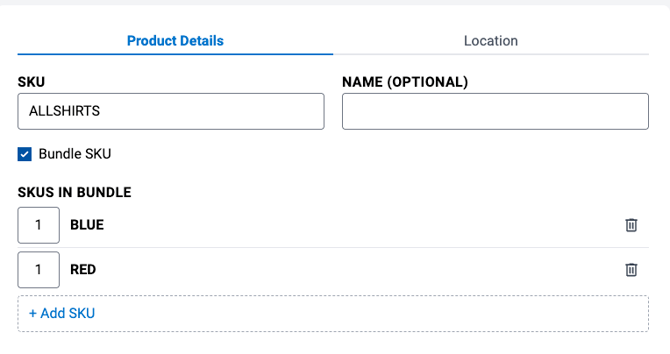
4. Fill in the required details for the Parent SKU, such as the Name and SKU identifier.
5. Click Add SKU to search for and select the existing Child SKUs you want to include in this bundle.
6. Specify the required quantity for each Child SKU (e.g., 2 Mugs, 1 Bag of Coffee).
7. Click Save to finalize the bundle. Your bundle is now ready to be synced with your storefront.