![eHub-Logo-FullColor-May-15-2024-07-27-43-6708-PM.png]](https://knowledge.ehub.com/hs-fs/hubfs/eHub-Logo-FullColor-May-15-2024-07-27-43-6708-PM.png?height=40&name=eHub-Logo-FullColor-May-15-2024-07-27-43-6708-PM.png)
Overview
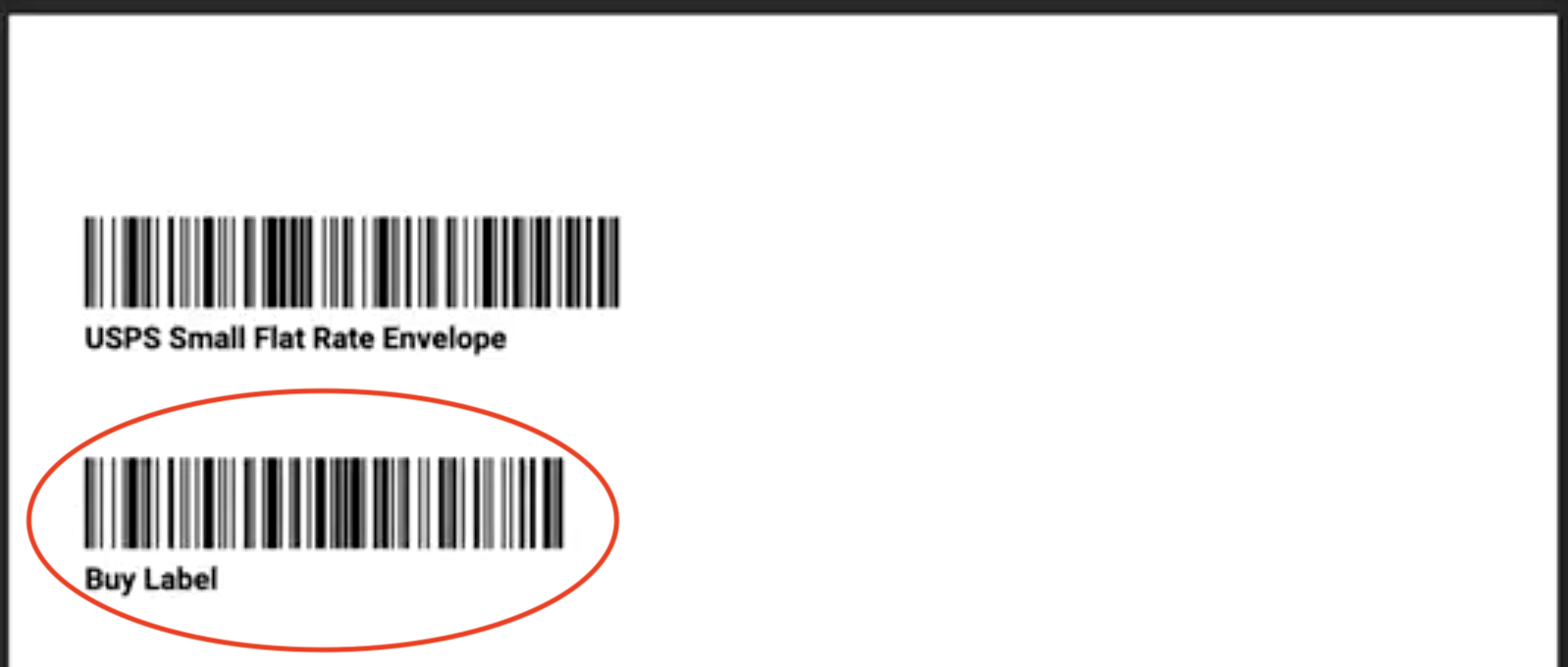
You can print Package Barcodes to quickly assign package types and purchase labels using a handheld scanner. Each printed barcode includes the package name for quick identification. A Buy Label barcode is also included to purchase a label without changing the package type.
How to Print Package Barcodes
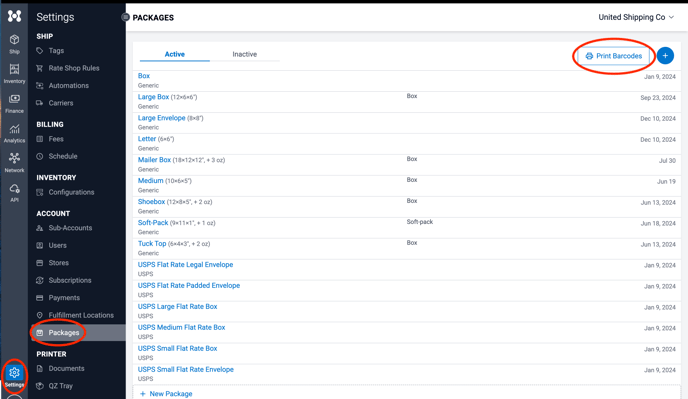
- Go to Settings > Packages
- Select Print Barcodes in the top-right corner
- In the Print To window, enter the number of Copies
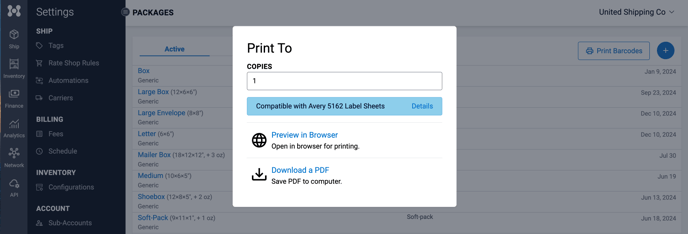
- Choose how you want to print:
Print Via QZ Tray — print directly to your printer
Preview in Browser — open a print-ready view in a new tab
Download a PDF — save the barcode sheet to your computer
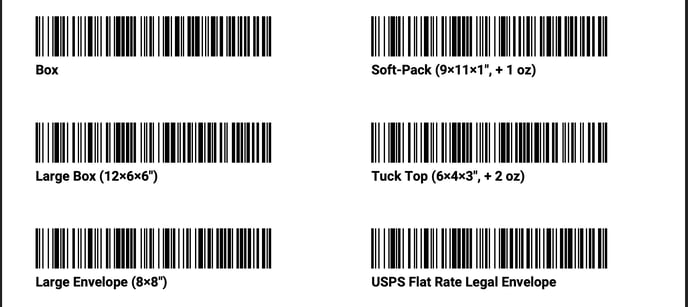
Once printed, each barcode will include:
- A scannable barcode
- The associated Package Type name
How Scanning Barcodes Works
When you are on an Order screen and scan a Package Barcode:
- The associated Package Type is automatically assigned to the order
- A label is rate shopped and purchased based on your rules
This supports fast fulfillment workflows such as:
- Scanning the Order Number barcode from a packing slip
- Using Scan to Verify to confirm all products are included
- Scanning a Package Barcode to assign packaging and purchase the label
Using the Buy Label Barcode
If the Package Type is already assigned (e.g., through eHub Pack or other automations):
- Scan the Buy Label barcode instead
- The system purchases and prints the label without reassigning a package type
The Buy Label barcode prints at the end of every Package Barcode sheet by default.