![eHub-Logo-FullColor-May-15-2024-07-27-43-6708-PM.png]](https://knowledge.ehub.com/hs-fs/hubfs/eHub-Logo-FullColor-May-15-2024-07-27-43-6708-PM.png?height=40&name=eHub-Logo-FullColor-May-15-2024-07-27-43-6708-PM.png)
Live Checkout Rates allow real-time shipping rate calculations to appear at checkout in your Shopify store using eHub’s integrated carrier services. This ensures your customers always receive accurate rates based on your shipping rules, item weights, and more.
Live Checkout Rates (LCR) is available only for customers on the Shopify Advanced plan or higher.
Step 1: Go to Store Settings in eHub
- Log in to your eHub account.
- Navigate to Settings > Stores.
- Click on your connected Shopify store from the list.
Step 2: Authorize Live Checkout Rates
- Scroll down to the Live Checkout Rates section.
- Click Authorize Live Checkout Rates with Shopify.
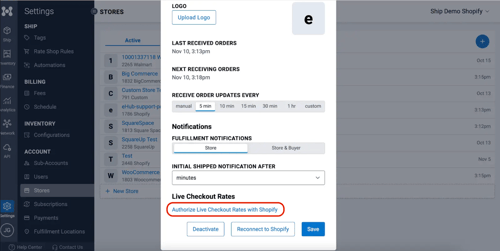
Step 3: Choose Your Rate Calculation Method
You must select one of two calculation methods:
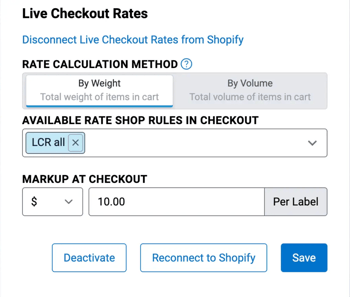
- By Weight
This uses the total weight of all items in the cart.
- eHub will use product weights stored in your eHub account first.
- If weights aren’t available in eHub, it will pull the weights from Shopify.
- Default package dimensions used: 8x8x8.
- eHub will use product weights stored in your eHub account first.
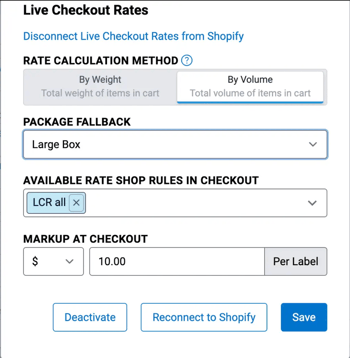
- By Volume
This uses both weight and item dimensions.
- If eHub cannot find item dimensions, a fallback package will be used.
- If eHub cannot find item dimensions, a fallback package will be used.
Step 4: Select a Package Fallback (Required for Volume Method)
If you selected By Volume, scroll down and choose a fallback package under Package Fallback.
Only packages created in your account with dimensions set will be available for selection. This fallback package will be used any time item dimensions are unavailable.
Step 5: Choose Rate Shop Rules
Under Available Rate Shop Rules in Checkout, select one or more rules. These rules determine which shipping services are returned to the customer at checkout. The rules shown here are the same ones you’ve already configured in your eHub account.
Step 6: Add Markup (Optional)
You can set a markup or discount on rates returned at checkout:
- Enter a dollar amount (e.g., $2.00)
- Enter a percentage (e.g., 10%)
- To apply a discount, use a negative number (e.g., -5)
This value will be added or subtracted from the final rate shown in Shopify.
Step 7: Save and Reconnect to Shopify
After configuring your rate settings:
- Click Save.
- Then click Reconnect to Shopify.
Step 8: Enable eHub as the Rate Provider in Shopify
In your Shopify admin:
- Go to Settings > Shipping and delivery.
- Scroll to Shipping Zones.