![eHub-Logo-FullColor-May-15-2024-07-27-43-6708-PM.png]](https://knowledge.ehub.com/hs-fs/hubfs/eHub-Logo-FullColor-May-15-2024-07-27-43-6708-PM.png?height=40&name=eHub-Logo-FullColor-May-15-2024-07-27-43-6708-PM.png)
Easily add team members to your eHub Ship account to streamline logistics, manage shipments, and access reports collaboratively.
Steps to Add a New User
-
Log in to your eHub Ship account using your admin credentials.
-
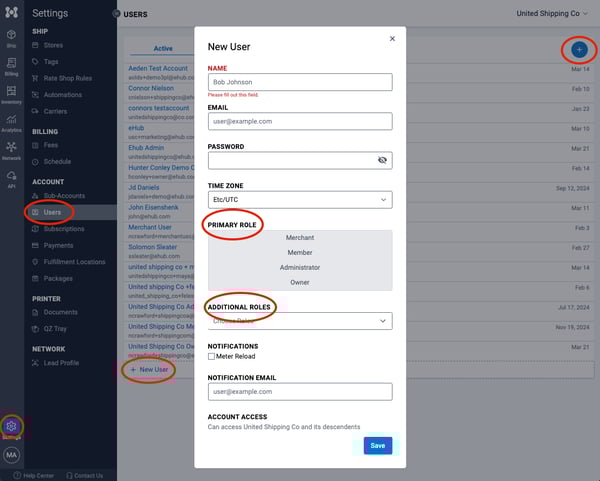
Go to Settings > Users.
-
Click the + New User button or the plus icon in the top-right corner.
-
Enter the user’s name, email, and set a password.
-
Select a primary role (required) and assign any additional roles (optional).
-
Click Save to complete setup.
Need help choosing roles? Check out our User Permissions Guide for detailed role descriptions.