![eHub-Logo-FullColor-May-15-2024-07-27-43-6708-PM.png]](https://knowledge.ehub.com/hs-fs/hubfs/eHub-Logo-FullColor-May-15-2024-07-27-43-6708-PM.png?height=40&name=eHub-Logo-FullColor-May-15-2024-07-27-43-6708-PM.png)
This guide explains how to access and download Transaction Reports in the eHub platform. You’ll learn how to filter by transaction type and date range, and export your results as a CSV file.
Step-by-Step Instructions
-
Log in to eHub
-
Go to app.ehub.com and log in with your account credentials.
-
-
Open the Finance section
-
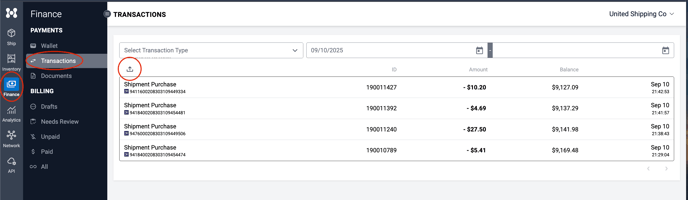
Click the Finance icon in the left-hand navigation bar.
-
Select Transactions.
-
-
Choose Transaction Type
-
Use the Transaction Type dropdown to filter your report.
-
Available options include:
-
Shipment Purchase
-
Shipment Refund
-
Shipment Adjustment
-
Card Reload
-
Balance Adjustment
-
-
By default, all transaction types are selected. If you filter by a specific type and later wish to return to the full view, you can select All in the dropdown to include every transaction type.
-
-
Set Date Range
-
Use the From and To fields to define the time period for your report.
-
-
View or Export Results
-
Transactions will appear in the UI once your filters are applied.
-
To export, click the Export arrow.
-
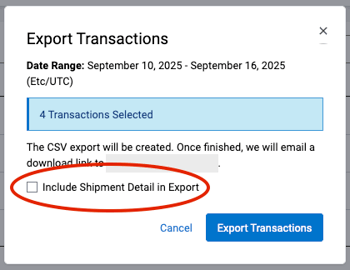
A pop-up window will appear with an option to Include Shipment Detail in Export.
-
Leave the box unchecked to export the basic report.
-
Check the box to export the detailed report with additional shipment-level data.
-
-
Export Options and Headers
When exporting, you can choose between a basic report and a detailed report.
Basic Export
Includes financial and customer-level information:
-
Card ID
The account identifier for the customer’s eHub Cash wallet. -
Transaction ID
A unique identifier for each transaction recorded in the system. -
Transaction Type
Specifies the category of the transaction, such as Shipment Purchase, Shipment Refund, Shipment Adjustment, Card Reload, or Balance Adjustment. -
Description
A brief explanation of the transaction (e.g., “FedEx Ground Shipment Charge” or “Balance Reload”). -
Credit/Debit
Indicates whether the transaction increased (credit) or decreased (debit) the account balance. -
Amount
The monetary value of the transaction. -
Account Balance
The wallet balance after the transaction was applied. -
Transaction Date
The date and time when the transaction was processed. -
Customer Name
The name of the customer associated with the shipment or transaction. -
Customer ID
The internal ID number tied to the customer account. -
Service Type
The shipping service used for the transaction, such as UPS 2nd Day Air, FedEx Ground, or similar. -
Tracking Number
The tracking number for the shipment.
Detailed Export (when “Include Shipment Detail in Export” is selected)
Includes all of the basic headers, plus additional shipment-level data:
-
Account Reference
Internal reference code linked to the account for easier reconciliation. -
Order Number
The order ID tied to the transaction in eHub. -
Origin Postal Code
The postal code where the shipment originated. -
Company
The company name associated with the recipient or account. -
First Name / Last Name
The recipient’s contact name for the shipment. -
Address / Address 2 / City / State / Postal Code / Country
Full recipient address information. -
Zone
The carrier’s designated shipping zone, based on distance between origin and destination. -
Weight (oz)
The parcel’s weight in ounces, used for billing and rating. -
Rate Calculation Type
Indicates how the shipping rate was calculated (e.g., dimensional weight vs. actual weight). -
Shipping Cost
The total charge for the shipment. This reflects the amount billed to the merchant or brand for the label.