![eHub-Logo-FullColor-May-15-2024-07-27-43-6708-PM.png]](https://knowledge.ehub.com/hs-fs/hubfs/eHub-Logo-FullColor-May-15-2024-07-27-43-6708-PM.png?height=40&name=eHub-Logo-FullColor-May-15-2024-07-27-43-6708-PM.png)
eHub Pack selects the best package for an order based on item dimensions, quantity, and the packages you configure. Once set up, Pack can automatically assign package types during order processing.
Overview
eHub Pack selects the best package for an order based on item dimensions, quantity, and the packages you configure. Once set up, Pack can automatically assign package types during order processing.
Step 1: Configure Your Products for Pack
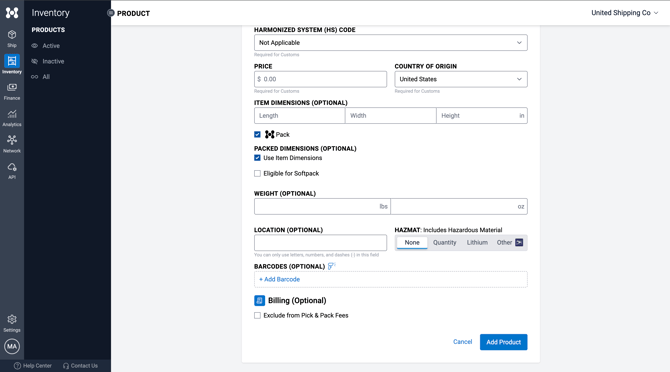
Pack uses product dimensions to determine which package should be used.
- Navigate to Inventory > Active Products.
- Open the product you want to configure.
- Scroll to Item Dimensions and enter the product's length, width, and height.
- The Pack checkbox is enabled by default. Uncheck it if you do not want Pack to consider this product when determining packages.
- Enable Eligible for Softpack if desired.
- Add different fulfillment dims if desired (e.g., if the product requires special packaging).
- Click Save Changes.
Example settings:
- Use Item Dimensions if the product ships at its actual size.
- Enter Packed Dimensions if the packed size is different.
- Enable Eligible for Softpack if the item can ship in a poly bag.
Step 2: Configure Your Packages
Pack selects from the packages defined in your settings.
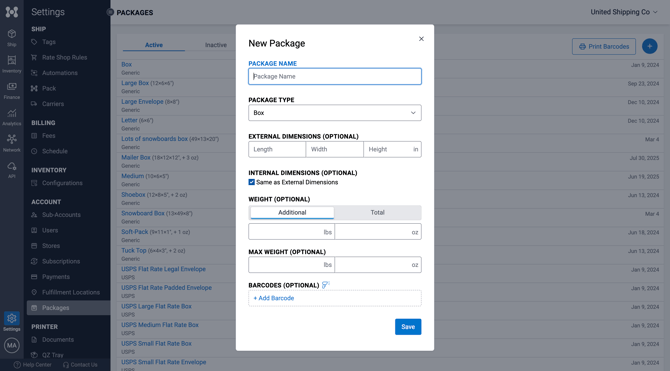
- Go to Settings > Packages.
- Click + New Package or open an existing package.
- Enter the Package Name.
- Select the Package Type (Box, Soft Pack, etc.).
- Enter the external dimensions.
- Add package weight if needed.
- Add Maximum Weight if desired. (Entering maximum weight will prevent the system from packing the package over the maximum weight.)
- Click Save.
Step 3: Create an Automation to Run Pack
Automations determine when Pack runs on an order.
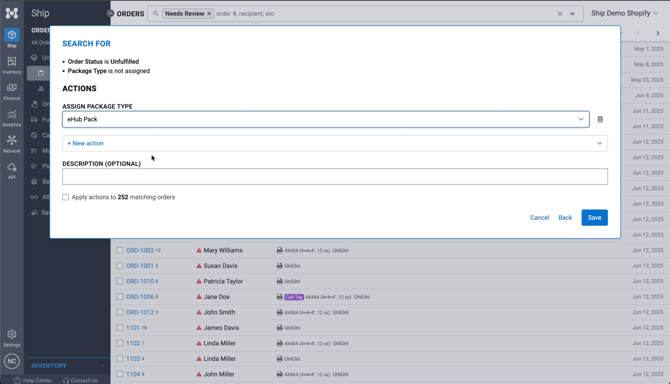
- Go to Settings > Automations.
- Click + New Automation.
- Set the conditions for the automation.
- Under Actions, click + New Action.
- Select Assign Package Type.
- Choose eHub Pack from the dropdown.
- Click Save.
Step 4: Review Pack Results
To review an order:
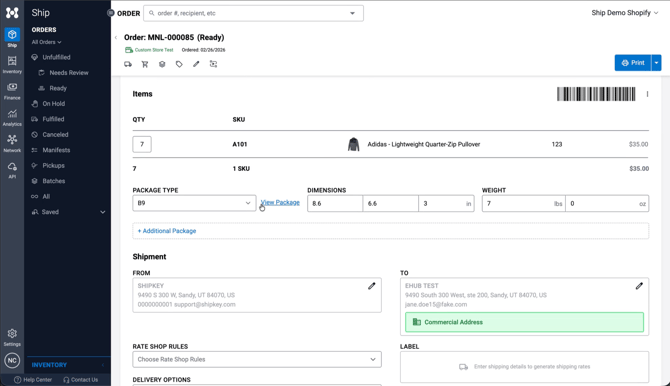
- Navigate to Ship.
- Open an order.
- Review the Package Type, Dimensions, and Weight assigned by Pack.
Step 5: Save Pack Overrides
If you change the package type on an order, you can save that change so Pack remembers it.
- Change the Package Type on the order.
- Click Remember this Option? when prompted.
- Choose how the override should apply (same SKUs or dimensions).
- Click Save to Pack.
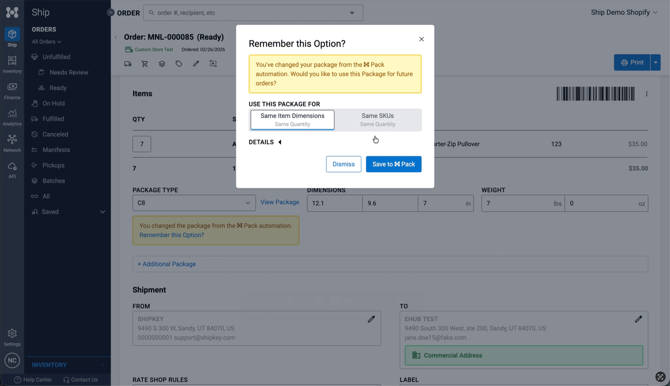
Saved overrides can be viewed in Settings > Pack.
Happy Shipping! – The eHub Team