![eHub-Logo-FullColor-May-15-2024-07-27-43-6708-PM.png]](https://knowledge.ehub.com/hs-fs/hubfs/eHub-Logo-FullColor-May-15-2024-07-27-43-6708-PM.png?height=40&name=eHub-Logo-FullColor-May-15-2024-07-27-43-6708-PM.png)
This article explains how to set up the Buy-Ready Label automation to purchase shipping labels for orders, saving time and eliminating repetitive manual steps.
Overview
The Buy-Ready Label automation purchases shipping labels for orders that meet your defined criteria.
When an order has the required shipping information—such as weight, dimensions, package type, and a rate shop rule—the automation can buy the label automatically.
This article covers two ways to create the automation and the required settings for it to run successfully.
Before You Begin
For the Buy Label action to work, each order must have the following:
- Package Type — A package type assigned to the order
- Dimensions — Used for shipping calculations
- Weight — Accurate order weight
- Rate Shop Rule — The rule used to select the shipping service
- Send From Location — A fulfillment location must be assigned to the order so eHub knows the origin address for the shipment
If any of these are missing, the Buy Label action will skip that order.
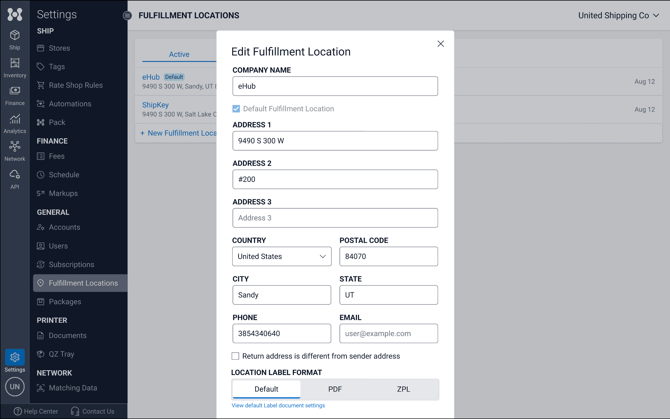 Fulfillment location settings in Settings > Fulfillment Locations
Method 1: Create an Automation from the Orders Search Panel
This is the fastest way to create a Buy-Ready Label automation.
Step 1: Open the Advanced Search Panel
- Navigate to Ship > Orders.
- Click the dropdown arrow next to the search bar.
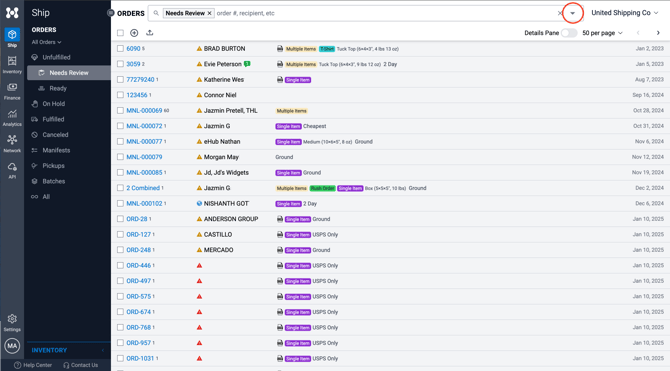
Opening the Advanced Search panel in Ship > Orders
Step 2: Set Your Search Filter
- Configure the filter that identifies the orders the automation should run on.
- Click Search to preview matching orders.
- When the results look correct, click Create Automation.
Example filter:
Order Status = Ready
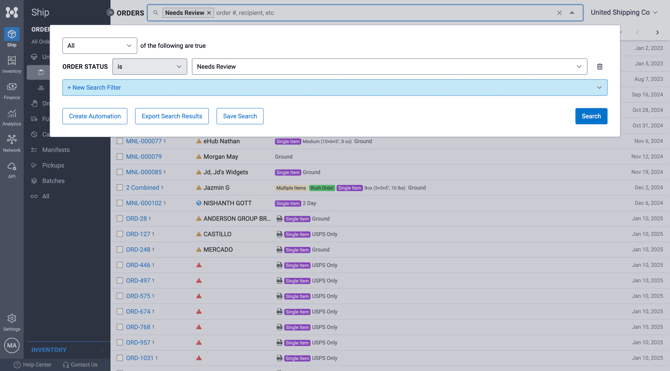
Configuring search filters — example: Order Status = Needs Review
Step 3: Add the Buy Label Action
- In the Automation builder, click + New Action.
- Select Buy Label.
Optionally add a description for the automation.
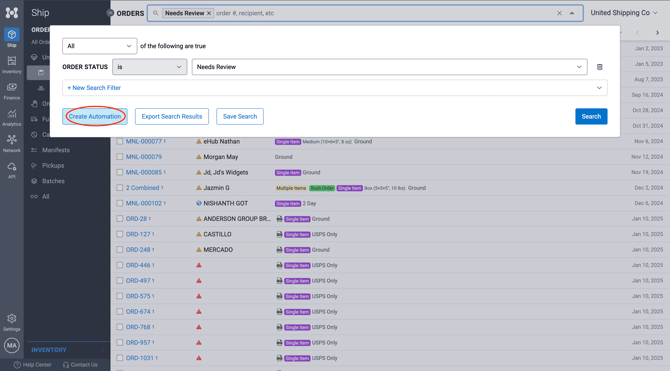
Adding the Buy Label action in the Automation builder
Step 4: Save the Automation
- Review the number of matching orders.
- Click Save.
Once saved, the automation appears in Settings > Automations.
Method 2: Create an Automation from Settings
You can also create the automation directly from the Automations page.
Step 1: Navigate to Automations
- Click Settings.
- Select Automations under Ship.
- Click + New Automation.
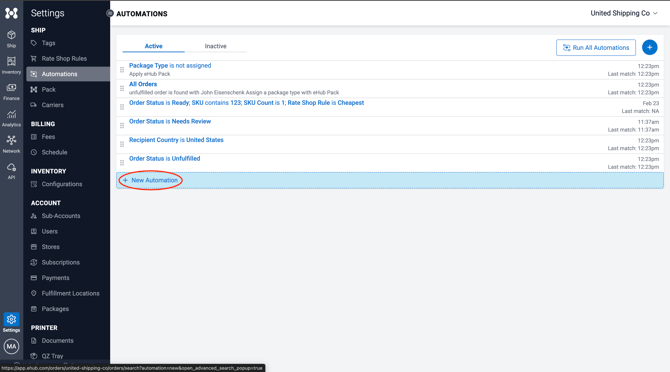 Settings > Automations page
Step 2: Define the Search Criteria
- Add the filter that identifies the orders.
- Click Search to preview results.
- Click Continue.
Example:
Recipient Country = United States
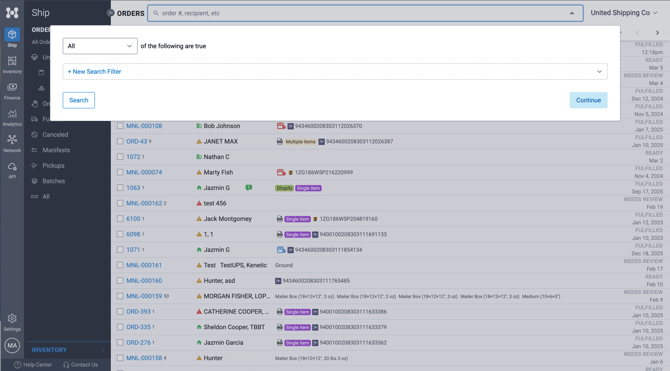
Defining search criteria — example: Recipient Country = United States
Step 3: Add the Buy Label Action and Save
- Click + New Action.
- Select Buy Label.
- Click Save.
Troubleshooting
If labels are not being purchased, verify the following:
- Orders have weight and dimensions
- A package type is assigned
- A rate shop rule is applied
- Supporting automations run before the Buy Label automation
-
A Send From Location (fulfillment location) is assigned
If any required value is missing, the Buy Label action will skip the order.